How to Track QR Code Campaigns with UTM Parameters
A QR code on a poster tells you nothing about who scanned it unless you tag it. Here is a simple UTM setup that shows which print placements actually bring in visitors.


In this article06 sections
You put the same QR code on a poster, a flyer and a product box. A few weeks later your website shows a bump in traffic. Which placement caused it?
Without tagging, you cannot tell. The visits all look like “direct” traffic, because a scan opens a page with no referrer attached. UTM parameters fix this in about five minutes.
What UTM parameters do
UTM parameters are short labels added to the end of a URL. Your analytics tool reads them and sorts the visit into the right bucket. A tagged link looks like this:
https://example.com/offer?utm_source=flyer&utm_medium=qr&utm_campaign=spring-launch
The three you need most are:
- utm_source: where the code lives, such as flyer, poster-mall or package-box.
- utm_medium: the type of channel. Use qr for every scan so you can compare QR traffic against everything else.
- utm_campaign: the campaign name, such as spring-launch.
Two optional ones help with detail. Use utm_content to separate versions (for example green-cta and blue-cta), and utm_term if you are tracking a keyword.
Why this matters more for QR codes
Online ads often tag themselves. Print never does. A poster has no click data, no referrer and no cookie, so the only way to connect a scan to a placement is the link behind the code.
This is also why dynamic QR codes help. The printed code points to a short redirect address, and you control the destination behind it. If you need to fix a tag after printing, you edit the destination link instead of reprinting. With a static code, a mistake in your UTM tags is permanent.
A naming system that stays clean
Most tracking problems come from messy names, not missing tags. “Flyer”, “flyer” and “Flyer-A” show up as three different sources. Agree on these rules before you tag anything:
- Use lowercase only. Analytics tools treat capital letters as different values.
- Use hyphens, not spaces. Write spring-launch, not Spring Launch.
- Keep one fixed medium. Always qr for scans, never QR, qrcode and scan mixed together.
- Name by placement, not by date. poster-mall is useful a year later, poster-march is not.
- Write it down. Keep a simple sheet listing every source and campaign name your team uses.
A worked example
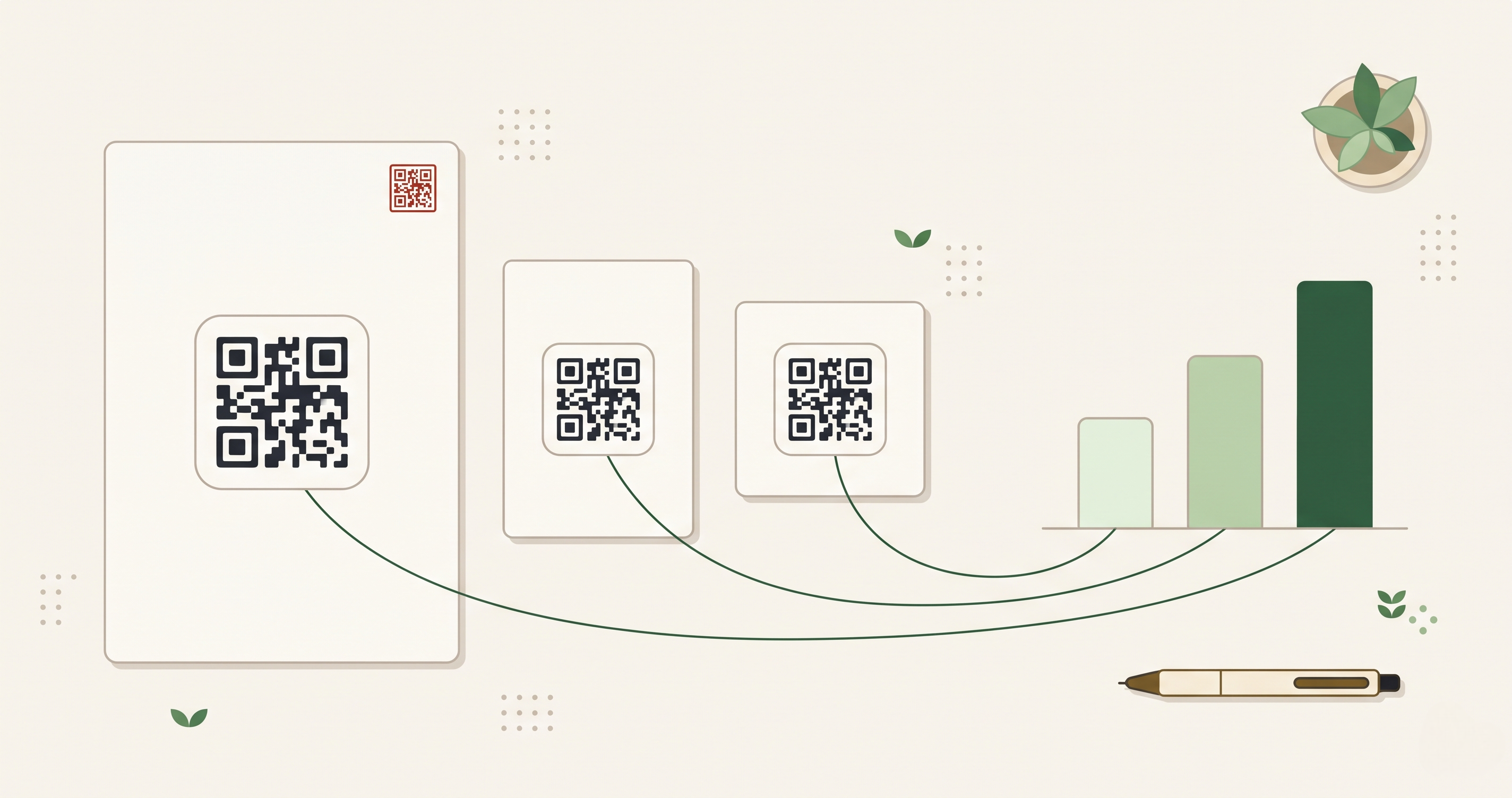
Say you run a cafe and want to learn which print piece brings people to your new menu page. You create three dynamic QR codes, each pointing to the same menu with a different source:
- Table tent: ?utm_source=table-tent&utm_medium=qr&utm_campaign=new-menu
- Window poster: ?utm_source=window-poster&utm_medium=qr&utm_campaign=new-menu
- Takeaway bag: ?utm_source=takeaway-bag&utm_medium=qr&utm_campaign=new-menu
After two weeks, your analytics report shows the visits split by source. You may find the takeaway bag brings the most scans while the window poster brings almost none. Now you know where to put your next print budget.
Common mistakes to avoid
- Tagging the QR image, not the link. The tags go on the destination URL behind the code.
- Skipping a test scan. Scan the code on a phone and check that the tagged URL loads and the visit appears in your reports.
- Reusing one code everywhere. One code in many places gives you one blended number. Make a separate code per placement.
- Tagging internal links. Never add UTM tags to links between pages on your own site. It can overwrite the original source of a visit.
Making it easier
Typing tags by hand invites typos. On , Creator plans and above include UTM presets, so you can save your standard source, medium and campaign values and apply them to each new link or QR code. You can start free with 25 links and 3 dynamic QR codes, no credit card needed, and try the setup on a single flyer.
Tag it once, scan it, and let the numbers show you what your print is really doing.
Keep exploring